Enabling S3 sleep on a Zen 2 Lenovo Ideapad Flex 5 (Ryzen 5500U, laptop type 82R9)
Introduction
Yesterday I got a new laptop, as my old one got it’s digitizer smashed due to a poorly designed hinge.
The new laptop is a IdeaPad Flex 5 14ALC7 (type 82R9), while the old one is an IdeaPad Flex 5 14ALC05 (type 82HU), with both having the same processor (Ryzen 5500U).
One major difference software-wise between the two models is that this one comes with Lenovo’s fancy graphical UEFI setup utility with cursor support (which is especially good at blinding you, as it has light mode only and makes the screen very bright), while the old one had the older TUI setup utility.
Unfortunately, another major difference is that, out of the box, it only supports s2idle (modern standby), which I truly detest, and no S3 sleep; and unfortunately, the setup utility doesn’t expose any setting to enable the latter.

However, I was sure that this laptop did in fact support S3 sleep under the hood for two reasons: first, the old laptop, which had the exact same CPU, supported it without any issues; second, the changelog for the firmware specifically mentions things about S3.
I tried for a while various methods to enter the advanced settings in the setup utility, but none of the many methods I found worked (the methods vary widely even between different Lenovo laptops), so I decided to look for alternatives. The solution came in form of this Reddit post that I adapted for my situation.
This procedure boils down to finding options that are technically exposed in the setup utility, but are part of an “advanced settings” menu that is hidden behind a button combination or procedure that’s not publicly known, or is otherwise made inaccessible.
Warning, warning, warning!
This is a risky process! Modifying EFI variables can brick your computer. If you don’t want to take any risks, or you don’t have a way to fix a potential brick, please do not follow this procedure. And especially do not, under any circumstances, for any reason, blindly edit any section of any EFI variable. It’s also in the realm of possibility that trying to enable S3 sleep this way may result in a brick on computers that simply don’t support it at all and have a janky firmware. I am not responsible for any bricks!
Increasingly as time goes on, new hardware may not support S3 sleep properly or at all (be it newer architectures, or expansion cards). Even if you manage to enable it, make sure to test if it actually works and your PC functions correctly after waking up.
This post was made to detail how the process went for my computer in particular. If you have another model, and especially if it has an Intel processor and/or is from a different generation, the process of finding the corresponding variable may be slightly or very different.
Requirements
You may not need some of these tools, or may need additional tools, depending on how your firmware updates are packaged. On Arch Linux, most are available in the official repositories or the AUR. All the tools have precompiled binaries available in their repos, including ones compiled for Windows.
- UEFITool (note that this is a GUI tool) - if you download a precompiled binary, make sure you get UEFITool and not UEFIExtract or UEFIFind; you may need to click “show all assets” in the GitHub release page. If installing from the AUR, make sure to get the ng package.
- innoextract - to extract Lenovo firmware updates packaged as .exe
-
geteltorito (not needed in my case) - to extract the bootable image from bootable ISOs, in case the firmware update is distributed in that format
- RU.EFI, or another way to directly edit EFI variables. efivar on Linux probably is more than enough, but I haven’t tried it.
Part I - finding the right variable
The first thing to do find the EFI variable responsible for disabling S3 sleep; this is usually, but not always, in the form of an option that toggles between S3 and modern sleep.
Download the firmware update corresponding to the firmware revision you currently have installed, and extract the raw image from it. In case of Lenovo update packages, you can extract them using innoextract: innoextract <utility>.exe
This will dump the content of the update utility in a folder, which in my case contained only four files, of which JCCN43WW.cap was the actual firmware file.
Open UEFITool, and open the firmware file, and a tree view will appear. Press CTRL+F, and do a text search for potentially related strings (in my case “modern” worked, but other options could be “S3”, “sleep”, “standby”, etc). Note that if you then perform another search, it will append the new results to the old ones; if you don’t want that to happen right click on the search result and clear them, or press CTRL+Backspace.
Ignore any results that aren’t PE32 image sections.
Double click on a search result to expand the tree view to it, and on that view right click it and do Extract as is….

From a terminal, run IFRExtractor on the extracted image: ifrextractor <PE32_image>`. If it errors out with No IFR data found, proceed with another PE32 image. If it succeeds, it will produce one or more txt files. Open them, search for the same string you did in the previous step, and see if you find the option that manages S3 sleep. Make sure you find an actual option with a VarOffset, and not something else like a subtitle or prompt.
In my case, the correct file was AmdPbsSetupDxe, and the option I was looking for has a prompt string of “S3/Modern Standby Support”.
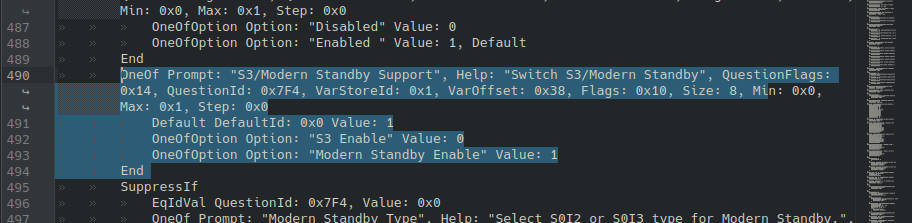
Take a note of the VarOffset value, which in my case is 0x38. Take a note of the value that enables S3 sleep, in my case it’s 0.
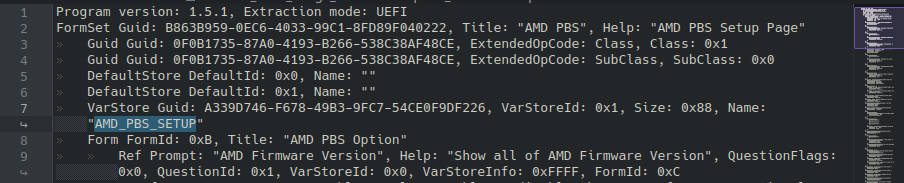
Go to the top of the file, and take a note of the Name string, which in my case is AMD_PBS_SETUP.
Part II - changing the variable
This is the scary part. I used RU.efi, but as said before, there are other ways to achieve this.
Disable secure boot if you have it enabled.
Put RU.efi in a place where you can boot it from your firmware. I tried putting it on a FAT32 formatted USB drive in EFI/BOOT/BOOTX64.EFI, but for some reason my laptop refused to boot from it, so I just launched an EFI shell and booted it manually.
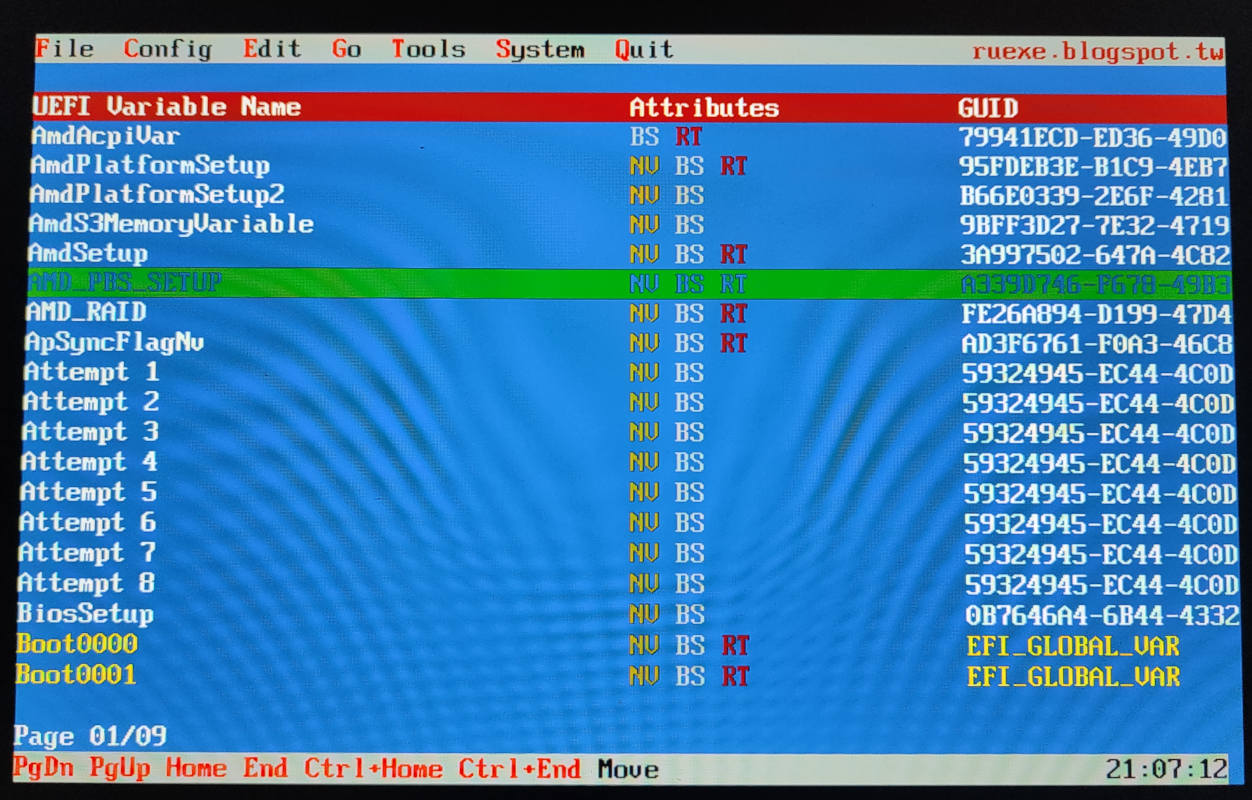
Press ESC to dismiss the splash message, then press ALT+= (USA layout) (or press ALT+C and then select UEFI variable), then find and select the variable with the name corresponding to the one you found before.
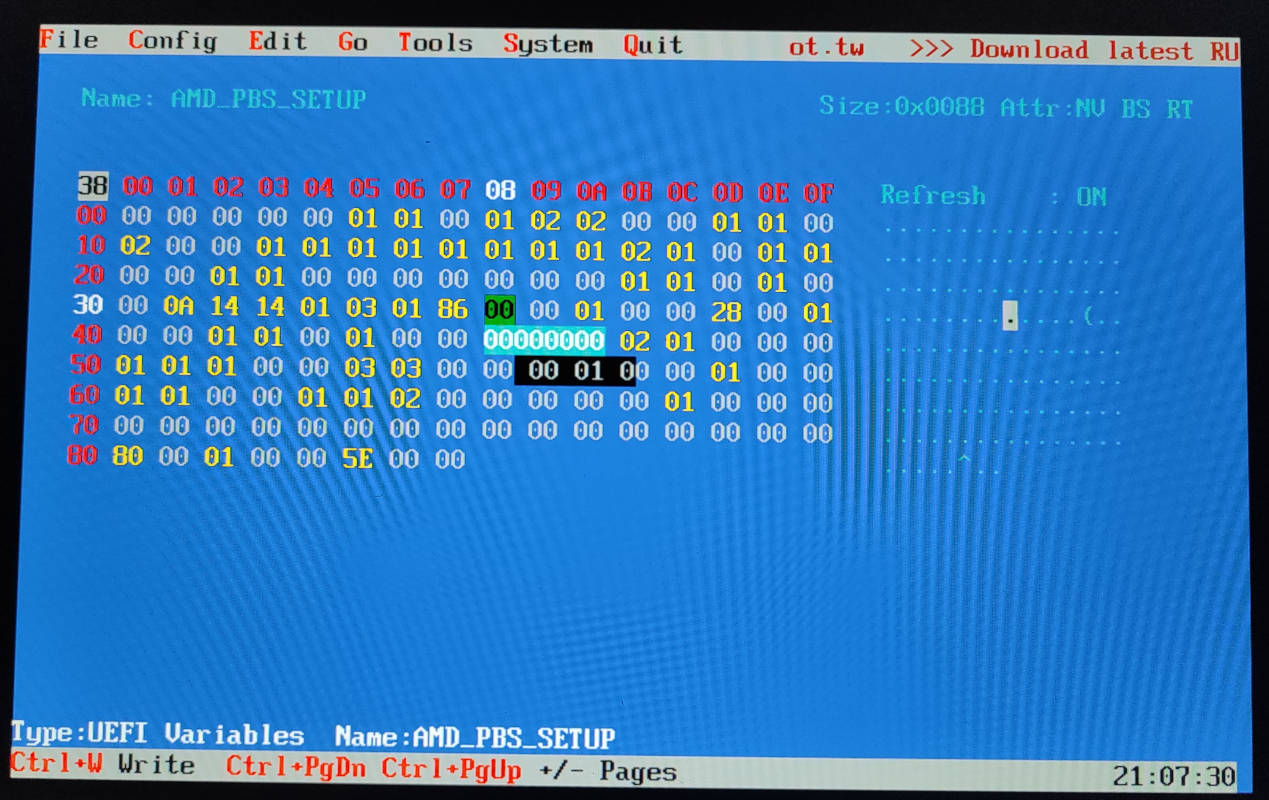
Go to the location corresponding to the offset you found before, and enter the value that enables S3 sleep (in my case, changing it from 01 to 00). Press Enter, then CTRL+W to save. You should get an Updated OK message.
Reboot your computer, and check if S3 sleep is now available.

Remember to enable secure boot again if you disabled it, and check if S3 sleep stays enabled after you save settings from the setup utility. Make sure to test S3 sleep to not have any nasty surprises and loss of data in the future.
Failed attempt on a Zen 4 ThinkPad E16 Gen 1
This procedure was also attempted on a ThinkPad E16 Gen 1 with a Ryzen 7730U. While we were able to find the variable (in the exact same location, in fact), RU.EFI failed to write to it with error 0x00000008, which is due to it being write protected. For now, I don’t know what to do in this situation.